Contents
Keep the working draft clear, review changes with confidence, and preserve the exact document that was signed.
A client signs an agreement. Minutes later, someone finds another copy with a different payment clause. Both files say “final.” The problem began before signing, when the team lost track of which draft had been approved.
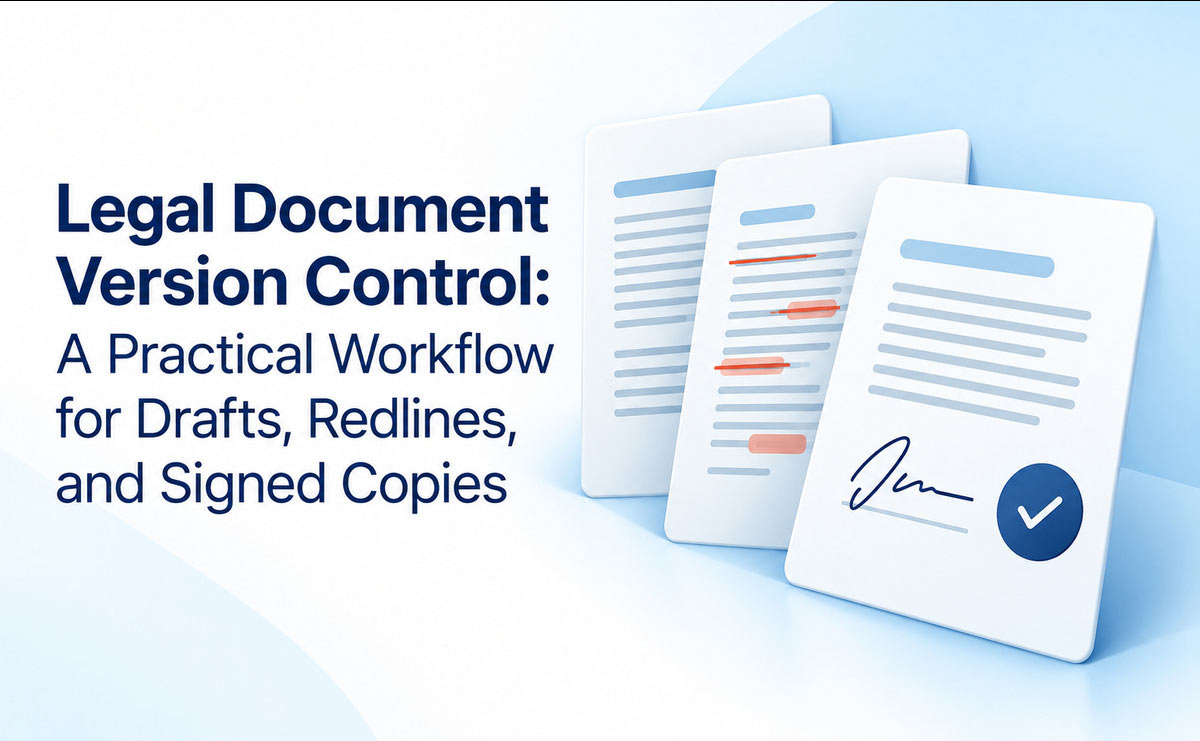
Legal document version control gives each document a clear identity, history, and status. It helps your team answer three questions: What changed? Who approved it? Which copy should we use now?
This guide sets out a practical process for small law firms. You will learn how to name files, reconcile edits, prepare redlines, check outgoing copies, and preserve signed records. Adapt the process to your firm’s tools and matter requirements.
What Is Legal Document Version Control?
Legal document version control is a process for tracking a document as people draft, review, approve, share, and sign it. It combines file history with clear rules about who can change or release each copy.
A version identifies a particular revision. A status identifies its purpose or stage. Version 8 might still be an internal draft. Version 7 might be the copy approved for client review. A later save does not, by itself, show approval.
Separate version history, change tracking, and approval
These controls answer different questions. Version history lets you inspect earlier saved states. Change tracking records edits within a document. A redline compares two chosen copies. An approval record shows that a named person authorized a specific copy for a specific use.
Microsoft explains that its Microsoft 365 version-history feature depends on storing files in OneDrive or SharePoint in Microsoft 365. Do not assume a local Word file has the same history. Check your storage location and configuration.
Your legal document version control process should connect these controls. A saved revision is useful, but the team also needs to know whether it may leave the firm.
For broader context, see RunSensible’s guide to document storage and document management. Legal document version control adds a defined review and release process to the files your firm keeps.
Give Each Copy a Clear Status
Define a small set of document statuses that everyone can use. The following is a suggested firm policy, not a universal legal standard. Adjust the labels for your work.
| Status | Purpose | Release rule |
|---|---|---|
| Working draft | Active internal editing | No external release without review |
| For review | A fixed copy sent for comments | Record the recipient and review baseline |
| Approved for signing | Exact package authorized for signature | Any change requires a fresh approval |
| Partially signed | Some signatures received | Keep separate from the fully signed record |
| Executed | Signed copy whose completion was checked | Preserve the received original |
| Superseded | Earlier copy replaced for the relevant purpose | Retain as policy requires; block routine reuse |
For court documents, add labels such as submitted and court-stamped where needed. An uploaded draft and a court-returned copy record different events. Avoid using “final” to cover all of them.
Make status changes deliberate
Assign someone to move the document between stages. That person should check the required evidence before changing its label. For signing, identify the approving lawyer, the approved file, and the intended signers.
Legal document version control works best when status is visible beside the file. Use a document field, a controlled folder, or a short matter note. Do not leave approval hidden in a private email thread.
Choose One Working Location and a Document Owner
Choose a firm-approved location for the active draft. Tell the team where it lives and how reviewers should contribute. If the firm uses a shared online document, send its link through the approved channel.
If reviewers need attachments, treat each returned attachment as an incoming review copy. Save it separately and reconcile its edits into the working draft. Avoid replacing the active file simply because an attachment arrived later.
Legal document version control responsibilities
Name a document owner, a reviewer, and a release approver. In a solo practice, one person may hold all three roles. In a larger team, make the handoff clear.
The owner maintains the working copy and reconciles comments. The reviewer checks the substance within their assigned role. The approver confirms that the identified copy may be sent, filed, or signed.
Give the owner a backup during leave or absence. A matter should not stall because only one person knows which copy is current. Your legal document version control policy should state how ownership transfers.
RunSensible’s matter-linked task management provides a place to assign review work and track its progress. Name the exact document in the task so completion does not become a vague “review done” entry.
Use File Names That Explain What You Are Opening
A useful name identifies the matter, document, version, and status. Keep the pattern short enough for staff to follow. Avoid placing sensitive client details in names that may appear in shared links or notifications.
For example: M1042_ServiceAgreement_v03_ForReview_2026-10-08.docx. This is a suggested naming pattern. The matter number is fictional, and the date format is year-month-day.
Reserve names for meaningful milestones
Do not create a manually numbered file for every keystroke. Use the platform’s history for routine saves where available. Create distinct milestone copies when the document is sent for review, approved for signing, or received with signatures.
Legal document version control needs names that remain useful outside your system. An exported attachment should still identify its purpose after a recipient saves it to another folder.
Use consistent labels such as Draft, ForReview, ForSigning, and Executed. Retire names such as “final-final,” “latest-new,” or “use-this-one.” Explain any abbreviation in the firm’s short written policy.
Label comparisons by both source versions
A redline name should identify the baseline and revised copy. For example: M1042_ServiceAgreement_Redline_v02-to-v03.pdf. State the comparison direction in the accompanying message.
Without that context, a reader may see a deletion but misunderstand when it happened. Legal document version control should make the comparison reproducible by another team member.
Reconcile Review Copies Before Creating the Next Draft
Start each review round from a known baseline. Preserve the copy sent to reviewers, record who received it, and state whether they should edit the shared file or return a marked copy.
When responses arrive, save the received files without silently changing their contents. Record the sender and receipt date. Link each response to the baseline used for that round.
Bring incoming material into the matter through a consistent client document collection workflow. Distinguish an original received file from a working copy your team has edited.
Resolve conflicting edits with a named decision maker
Suppose the client changes a notice period while another reviewer edits the same clause. The owner should flag the conflict, explain the competing changes, and obtain a decision from the responsible lawyer.
Do not let the order in which files arrived decide the wording. Once the conflict is resolved, record the outcome and create the next controlled revision.

Redacted Documents in Law: What They Are and Why They Matter
Microsoft’s Combine revisions guidance describes merging review copies into a document for review. Combining edits still requires someone to decide which changes belong in the next draft.
Legal document version control preserves the inputs and the chosen result. It should also capture unresolved questions so they do not disappear when comments are cleared.
Create Redlines Against the Right Baseline
Before generating a redline, choose the comparison that answers the reader’s question. A client may need changes since their last approved draft. Opposing counsel may need changes since the last copy sent to them.
An internal draft saved between those events may be the wrong baseline. Legal document version control requires a record of what each recipient actually received.
Use Compare for a defined pair of documents
Microsoft’s legal blackline guidance for desktop Word on Windows explains how Compare produces differences between an original and revised document. The default output is a new document. Some output choices modify a selected source, so check the setting.
The guidance distinguishes comparing two versions from combining several reviewers’ revisions. Follow instructions for your firm’s supported Word edition; menus and features vary by platform.
Keep the source copies used for the comparison. Check how the tool handles existing tracked changes before running it. Record any preparation applied to copies of the sources.
Review the redline and clean copy together
The reviewer should check that both outputs came from the same revised source. Review changed wording, cross-references, numbering, defined terms, and attached schedules. Then inspect the clean copy for layout and missing content.
A redline helps direct attention to changes. It does not replace reading the document for meaning. Your legal document version control checklist should require both the comparison review and the release review.
Prepare an Outgoing Copy Without Exposing Internal Work
Decide what the recipient should receive: a marked draft, a clean editable copy, or a PDF. A clean copy has a defined audience and purpose. It should not conceal questions that still require a decision.
Remove unwanted markup deliberately
Microsoft explains that No Markup hides tracked changes without deleting them. Turning tracking off also leaves existing tracked changes in the file. Review and resolve changes before preparing an intended clean copy.
Microsoft’s accept-or-reject guidance covers reviewing revisions and deleting comments. Have the responsible reviewer settle open points first. Removing a comment does not establish that its underlying question was answered.
Legal document version control should preserve the internal review record separately. Prepare the outgoing copy from the approved source rather than cleaning the only copy of the working file.

Check hidden information and the exported PDF
Microsoft recommends using Document Inspector on a copy because removed information may be difficult to restore. Review the findings and remove only what the outgoing document should exclude.
Microsoft notes that Word for Mac lacks Document Inspector. Provide a supported alternative process for Mac users. Checking file properties alone does not replace reviewing comments and revisions.
Exporting to PDF does not end the review. Adobe identifies metadata, comments, and hidden layers as possible PDF content and provides Acrobat Pro sanitization guidance. Use the approved tool on an outgoing copy, then reopen the result.
Check the actual file being sent. Confirm page count, schedules, signature blocks, visible text, and the recipient list. Legal document version control includes this release check, not just the draft history.
Approve the Exact Signing Package
Identify the approved signing file and all required attachments. Record who approved it, when, and for which signers. Preserve that package separately from the editable working draft.
After approval, route any requested change back to the reviewer. Even a small edit can affect a defined term, amount, or cross-reference. Generate a new signing copy and renew approval where the approved content changes.
Check the upload before sending signature requests
Open the document inside the signing workflow. Confirm that the uploaded package matches the approved copy. Check schedules, signer order, required fields, and whether each signer can see the correct documents.
If a package is replaced, handle the earlier request through the signing platform’s supported process. Record which request remains active. Avoid leaving recipients with two apparently valid signing invitations.
Legal document version control should connect the signing request to the approved file. A record that says “sent for signature” is incomplete if the team cannot identify what was sent.
Preserve Signed Originals and Label Later Copies
Save the returned signed file as received. Where the signing service supplies a completion certificate or audit record, preserve it with the document. Keep partially signed material separate until the responsible person checks completion.
Check the required signatures and attachments before applying your Executed status. The label records the firm’s review; it does not determine legal enforceability.
Keep derivatives separate from the signed record
A searchable copy, redacted copy, or client delivery copy serves a different purpose from the received original. Identify it as a derivative and record its source. Preserve the original file unchanged.
Adobe’s signed-PDF guidance describes editing restrictions associated with digital signatures. Those restrictions depend on the signing and locking choices. Do not clear signatures or alter the original simply to tidy the file.
If a signed document needs correction, send the issue to the responsible lawyer. The proper route may involve a replacement document or another formal step. Legal document version control should preserve the original and record the relationship to any later document.
Use a retention policy for earlier drafts
Decide how drafts, review copies, approvals, and signed records fit your firm’s retention policy. Do not delete earlier versions merely because an executed copy exists. Obtain the required review before any routine disposal.
RunSensible’s guide to client file retention provides related background. Apply the rules and instructions that govern your particular matter rather than treating version cleanup as automatic.
Best Practices: Test the Workflow on One Matter
Start with one document type and a small team. Write a one-page policy covering the working location, naming pattern, statuses, owner, reviewer, release check, and signed-record handling.
Ask someone outside the drafting team to find the current draft, the last external copy, the signing approval, and the signed original. Record where they hesitate. Use those findings to improve the process.
Test legal document version control with a realistic exception: two conflicting review copies or a change after signing approval. Confirm that the team knows who makes the decision and how the new revision is recorded.
Measure process gaps rather than promising a fixed time saving. Useful checks include missing approvals, unclear baselines, duplicate signing requests, and time spent locating the right copy. Review a small sample regularly.

Common Mistakes to Avoid
Choosing by the latest timestamp. A later save may reflect an export or an unapproved edit. Use the recorded status and approval to choose the correct copy.
Comparing against the wrong file. Preserve external release copies so the reviewer can identify the right baseline.
Cleaning the only internal record. Preserve review inputs and prepare a separate outgoing copy. Remove information according to that copy’s purpose.
Assuming a stored file proves approval. Legal document version control needs an approval record tied to a specific file, not simply a completed task.
Overwriting a signed original. Keep later search, redaction, and delivery copies separate and clearly named.
Frequently Asked Questions
Is Track Changes enough for a law firm?
No. It helps review edits within a file. The team still needs a working location, a known baseline, release approval, and a preserved signed record. Legal document version control connects those steps across the matter.
Should we use version numbers or dates?
Use both when each adds useful context. A version number identifies the revision; a date records a milestone. Add a status such as ForReview or Executed. If your system supplies version numbers, use them consistently.
Can a paralegal manage document versions?
A paralegal or other authorized team member can coordinate the process within their role. Identify the person responsible for substantive review and release approval. Assigning file maintenance does not transfer legal judgment.
What should we do when two reviewers edit the same clause?
Preserve both returned copies and identify their shared baseline. Flag the conflicting edits for the responsible reviewer. Record the decision before producing the next working draft.
Does a redline show every possible problem?
No. Its usefulness depends on the source files, comparison direction, and settings. Review the clean copy too, including cross-references, schedules, and layout. A comparison cannot decide whether the wording meets the client’s instructions.
Can we change a PDF after it has been signed?
Preserve the signed original and refer proposed changes to the responsible lawyer. Digital signatures can restrict edits. Create clearly labeled derivatives for permitted processing rather than replacing the received signed record.
Conclusion
Legal document version control works when the team can identify the current draft, understand the changes, and find the approval for the exact released copy. Clear file names help, but ownership and release checks make the process reliable.
Start with one matter. Define the statuses, record the review baseline, and preserve the signing package. Make those steps easy to follow before applying the workflow across the firm.
RunSensible combines matter work with document storage and task tracking. Its RunSensible Drive page describes centralized storage, access to prior versions, and file search. These capabilities support locating documents and checking their history.
Use assigned review tasks alongside the stored files to clarify the next action and its owner. Keep release approval tied to the identified document. Confirm the settings available in your firm’s account before translating the policy into software steps.
To assess the fit, walk through a sample review round with your team: receive two copies, resolve a conflict, approve the signing file, and retrieve the signed record. Judge the process by how clearly another person can follow it.
Resources
Official documentation reviewed on October 8, 2026. The workflow examples and proposed policy labels are editorial recommendations.
- Microsoft: view previous versions of Office files — Storage requirements for Microsoft 365 version history.
- Microsoft: compare documents using legal blackline — Two-file comparison, output choices, and Windows scope.
- Microsoft: combine document revisions — Combining reviewer copies for review.
- Microsoft: track and review changes — No Markup and turning off tracking do not remove existing revisions.
- Microsoft: accept or reject tracked changes — Revision decisions and comment removal.
- Microsoft: remove hidden data with Document Inspector — Inspection on a separate copy and limits of removal.
- Microsoft: Inspect document — Word for Mac lacks Document Inspector.
- Adobe: sanitize PDFs in Acrobat Pro — Possible hidden PDF content and sanitization.
- Adobe: permissions and limitations of signed PDFs — Digital-signature editing and locking restrictions.
Disclaimer: The content provided on this blog is for informational purposes only and does not constitute legal, financial, or professional advice.